Describing a visual element with words is slow and ambiguous — "the third button next to the search bar" leaves the AI guessing, and every clarification round multiplies tokens without adding precision.
← Back to patterns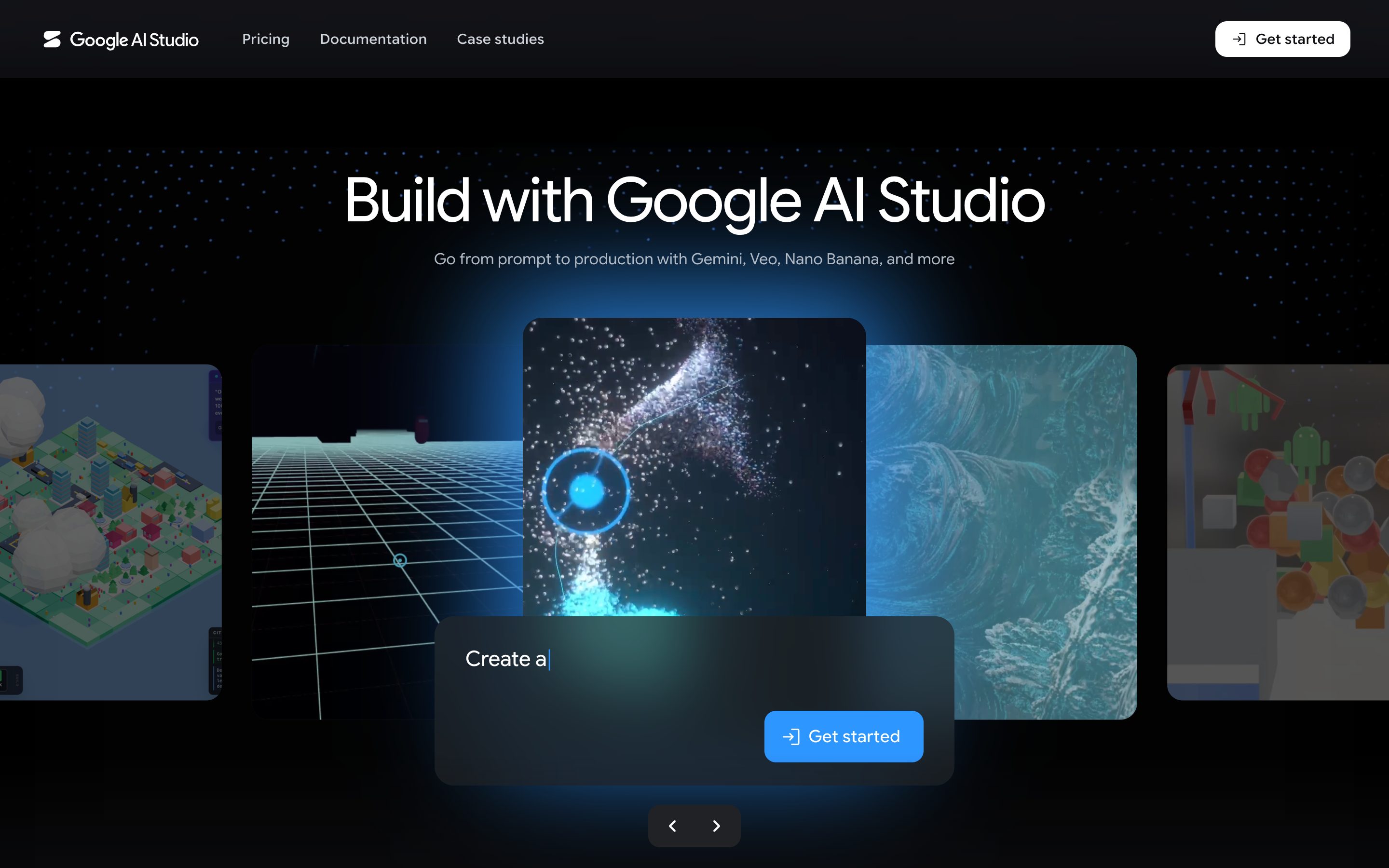
Google
Visual & Generative
EmergingAnnotated Capture
Point at it — visually — instead of describing it
Describing a visual element with words is slow and ambiguous — "the third button from the left, next to the search bar". Annotated Capture lets the user draw on a screenshot directly: circle the element, arrow it, label it with the change you want. The annotations themselves become the prompt. Distinct from Multi-Modal Input (which composes a new artefact from sketch + text + reference) and Region Lock (which freezes parts of generated output): this pattern is markup of a captured surface as a steering signal. Made practical by vision-language models that can resolve per-pixel pointing — a 2024-era capability shift that turned hand-drawn arrows into a precise input channel. By 2026 the pattern ships natively, not as a workaround: Cursor's Design Mode puts click, multi-select, and draw-to-select annotation directly in the canvas, and Figma Make reads on-canvas annotations as build instructions.
Metaphor
Sticky Note on Screenshot
Interaction
Capture, Mark Up, Submit
Use case
UI Feedback, Bug Reports, Design Critique, Computer-Use Agents
Failure mode
Pointing-by-Prose
Control mechanisms
Markup Tools (Arrow · Circle · Label) · Screenshot Canvas · Pointing-as-Prompt
Reference examples
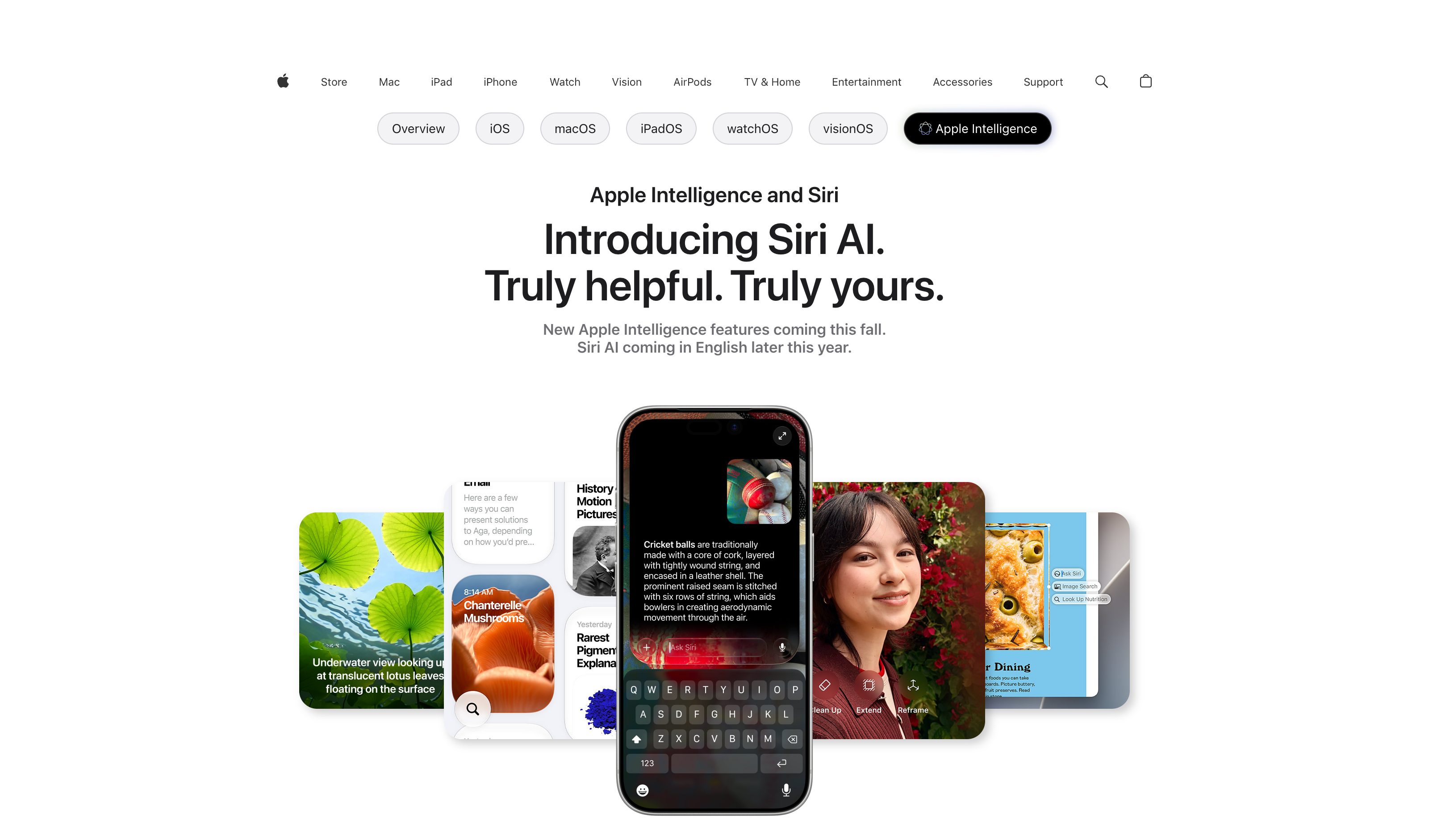
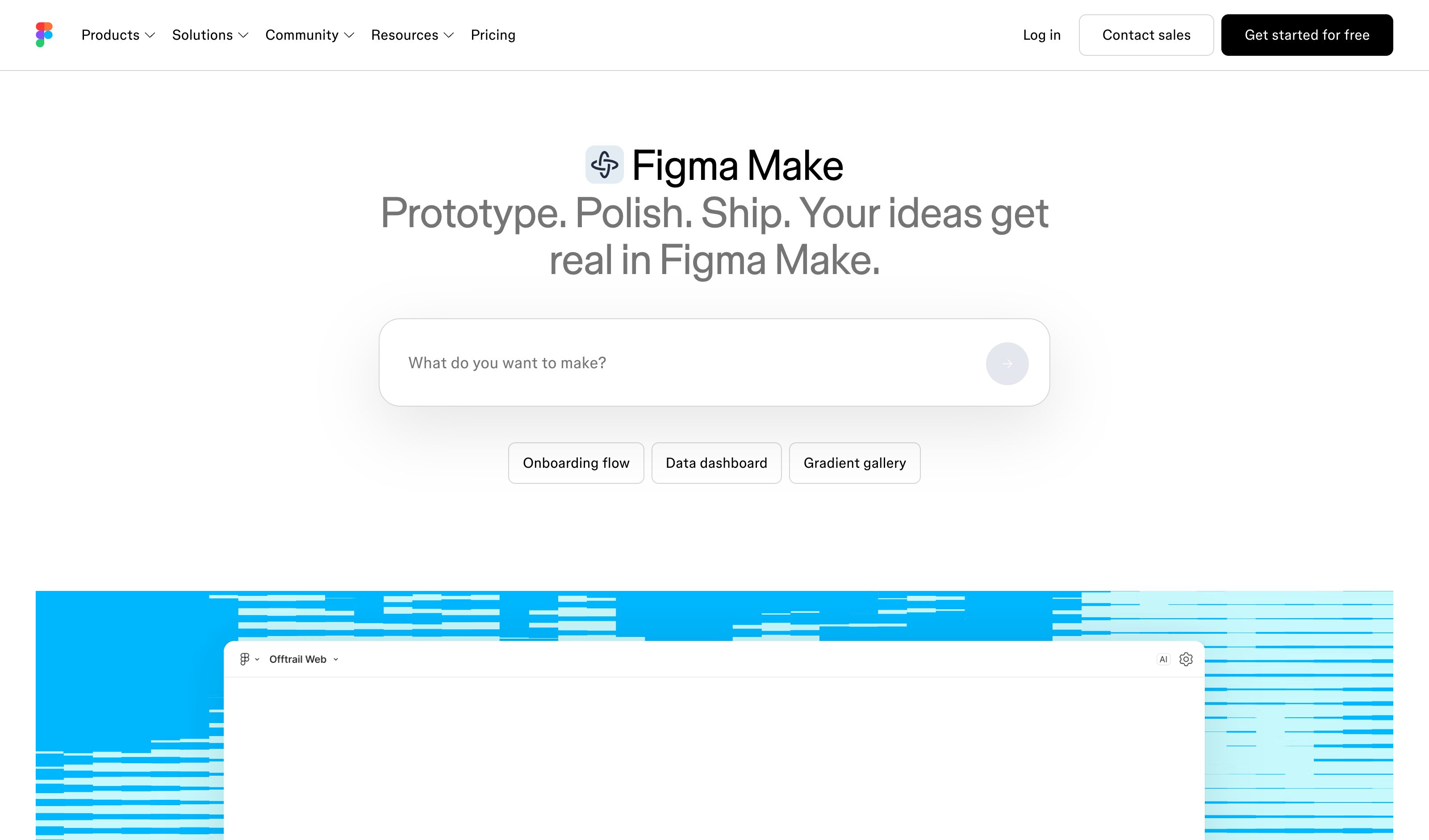
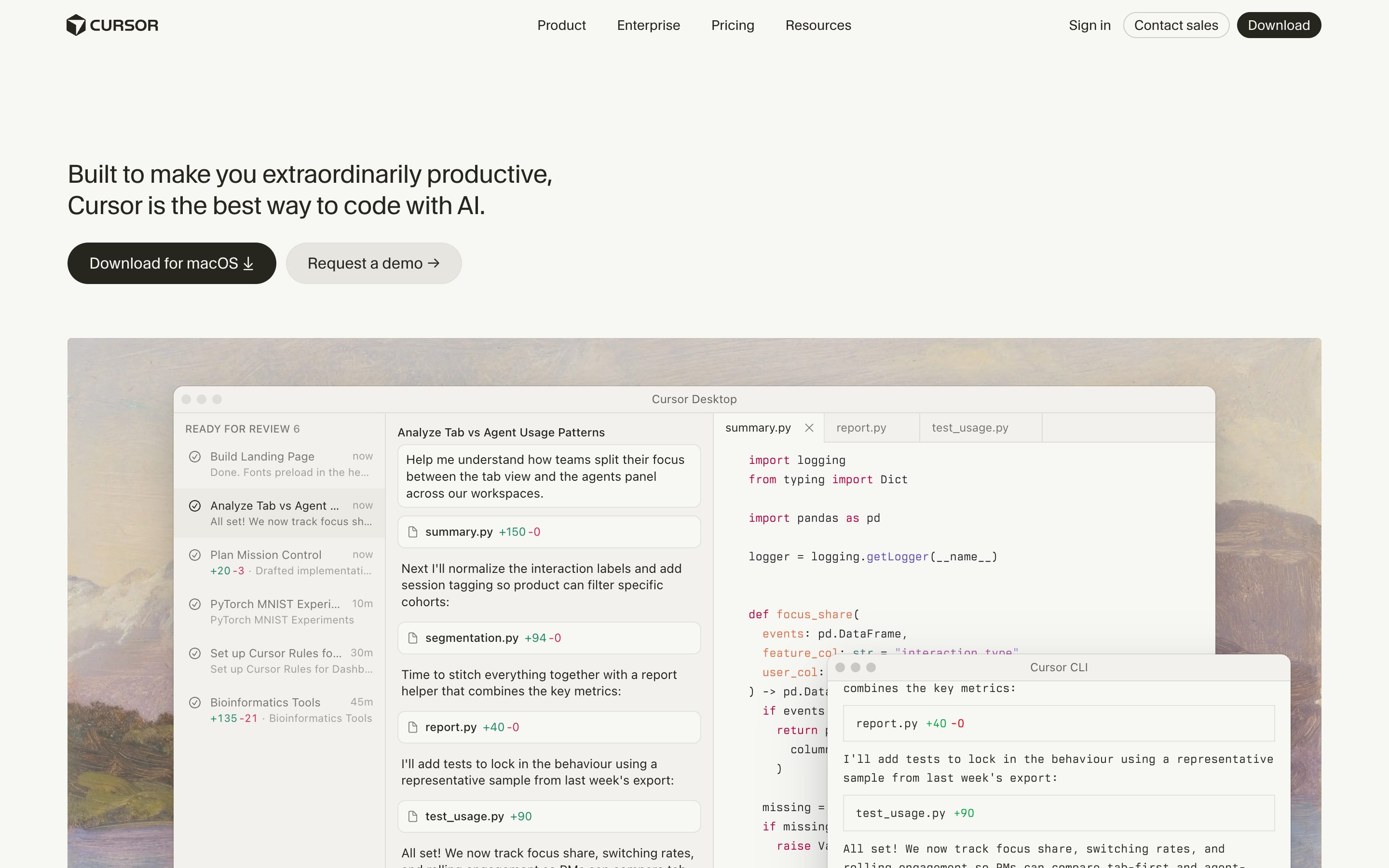
Google AI Studio Stream Realtime · Apple Intelligence Image Wand · Figma Make Canvas Annotations · Cursor Design Mode
Interactive Example
The live side-by-side is the comparison.
This prototype already contains the contrast between chat and the pattern response. It stands as the primary comparison surface for this page.
Stop describing the button. Circle it.
"The third button from the left, next to the search bar" forces the user to encode a spatial fact as prose, and the model to decode prose back into spatial reasoning — precision leaks at both ends. Every clarification round burns tokens without buying accuracy, because the bottleneck was never the model's understanding; it was that pointing got flattened into a single text channel.
Annotated Capture lets the user mark up the screenshot directly — circle the element, arrow it, label the change — and the markup itself becomes the prompt. This is deictic input: "this one, this big" instead of "the one between X and Y." Vision-language models can now resolve per-pixel pointing, so the translation layer is simply deleted, and every annotation stays visible on the canvas as a record of exactly what the AI was told to look at.
The shortest path from intent to instruction is a hand-drawn arrow, not a paragraph describing where to draw it.
DOPE Lens
How this pattern improves AI interaction quality.
Observability
Every annotation is visible on the canvas — the user sees exactly what the AI is being told to look at
Directability
Add, move, edit, or delete annotations directly on the canvas before submitting
Predictability
Markup is unambiguous: a circle around an element means that element, not "something similar"
Explainability
Each annotation carries its tool kind and an optional label that names the change requested
Fit
Where it earns its place.
Use it
when
when
Visual pointing translated into prose costs tokens, time, and precision — now that vision-language models can resolve markup directly, the translation layer is unnecessary.
Avoid
when
when
The visual is simple enough to describe in one sentence, the underlying element is text where Select & Transform is already a fit, or the user has no easy capture path (mobile-only flows without screenshot APIs).
In the wild
Where this pattern already ships.
The pattern is shipping but still maturing across products. Entries below show how different teams have approached it; expect variation as the space settles.
Google AI Studio · Stream Realtime
Live screen-sharing session with Gemini where the cursor itself becomes a deictic gesture — the model resolves "this thing here" without prose. Closest production-grade approximation of pointing-as-prompt today.
Visit Google ↗
Apple Intelligence · Image Wand
Apple
Draw a rough shape around something on screen and the wand resolves the bounded region as an input. Ships in iOS/macOS as part of Apple Intelligence — closest mass-market expression of the pattern.
Visit Apple ↗
Figma Make · Canvas Annotations
Figma
In-canvas comments and arrows that the AI-driven build flow reads alongside the design — annotations on a frame become instructions, not just feedback.
Visit Figma ↗
Cursor · Design Mode
Cursor
First-class annotation canvas (Cursor 3.0, April 2026; extended in 3.7): click, multi-select, or draw-to-select UI elements directly and add a note or voice narration — the agent edits from the pointing itself, replacing the old pasted-PNG workaround.
Visit Cursor ↗
Research Frame
Why this pattern exists, and where it breaks.
Let the user mark up a captured screen directly with arrows, circles, and labels. The annotations become the prompt: deictic markup ("this one, this big") instead of descriptive prose ("the one between X and Y").
Chat is a single text channel; visual pointing has to be translated into prose at the user side and back into spatial reasoning at the model side, which loses precision at both steps. Vision-language models can now resolve markup directly, and first-class annotation canvases — Cursor's Design Mode, Figma Make — ship it natively rather than as a pasted-screenshot workaround.
Over-annotated captures get noisy and the AI can fixate on the markup instead of the underlying element. If the system silently reads only some markup types (e.g. circles but not arrows), the user has no signal which were used. Annotation tooling that drifts from native conventions (Apple Pencil, browser screenshot apps) creates a second thing to learn.
Common questions
What people ask about this pattern.
When should I use the Annotated Capture pattern?
+
Visual pointing translated into prose costs tokens, time, and precision — now that vision-language models can resolve markup directly, the translation layer is unnecessary.
When should I avoid the Annotated Capture pattern?
+
The visual is simple enough to describe in one sentence, the underlying element is text where Select & Transform is already a fit, or the user has no easy capture path (mobile-only flows without screenshot APIs).
What problem does Annotated Capture solve?
+
Describing a visual element with words is slow and ambiguous — "the third button next to the search bar" leaves the AI guessing, and every clarification round multiplies tokens without adding precision.
Why is chat the wrong fit for this?
+
Chat is a single text channel; visual pointing has to be translated into prose at the user side and back into spatial reasoning at the model side, which loses precision at both steps. Vision-language models can now resolve markup directly, and first-class annotation canvases — Cursor's Design Mode, Figma Make — ship it natively rather than as a pasted-screenshot workaround.
Related Patterns
Curated connections, not just neighbors.
Hand-picked relationships — what this pattern pairs with in practice, what it replaces, what it builds on, and what builds on it.
Often paired with
Region Lock
Annotated Capture marks what to change on a screenshot; Region Lock pins what must survive the next regeneration.
Alternative to
Multi-Modal Input
Multi-Modal Input composes something new from sketch, text and references; Annotated Capture marks up a captured screen.
Alternative to
Select & Transform
Select & Transform points at text by selecting it; Annotated Capture points at pixels by drawing on them.